A cozy room to get things done.
Sukoon sits you at a desk by a rainy window: chai steaming, fairy lights twinkling, a ginger cat asleep beside your notebook. Start the Pomodoro timer and the cat sleeps while you work, then sits up for your break. Mix your own background from endless lo-fi music composed live on your PC, rain, thunder, a crackling fire, wind, birds and brown noise.
Version 1.0.0 · Windows 10 & 11
— downloads so far
The room
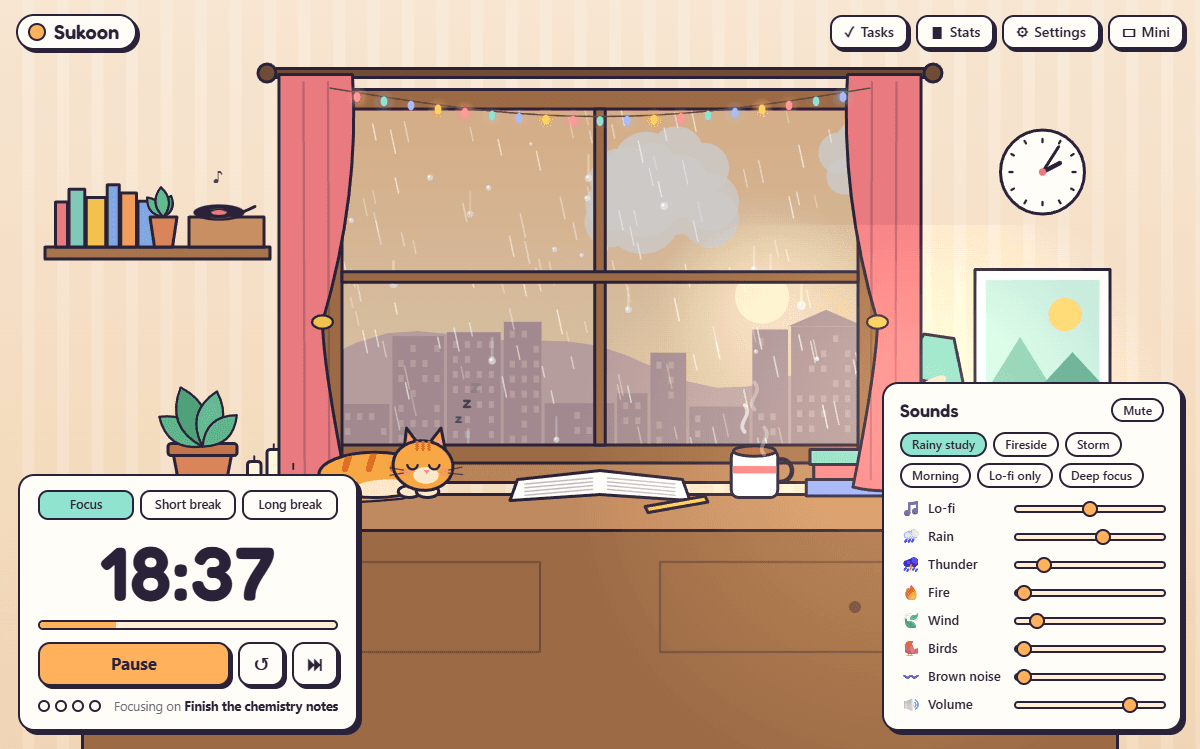
Rain on the window, chai on the desk.
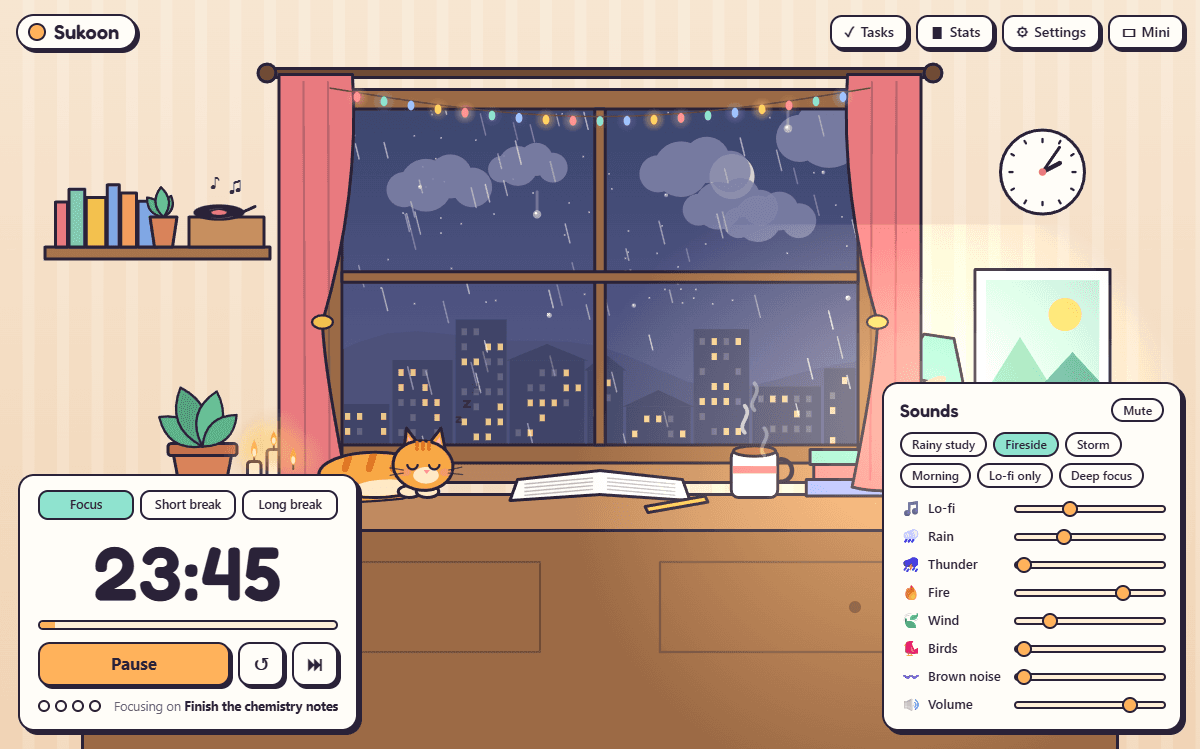
The sky outside follows your clock — morning, afternoon, golden hour, evening and night, with the lights coming on in the town across the way. Rain runs down the glass, the record player spins while the music plays, the candles light up when you turn the fire on, and the window flashes a moment before the thunder rolls in. The clock on the wall tells the real time.
- Five skies that follow the time of day, or pick your own
- Rain on the glass, steam from the cup, twinkling fairy lights
- The window flashes before every roll of thunder
- A clock on the wall that shows the real time
The timer
Focus while the cat sleeps.
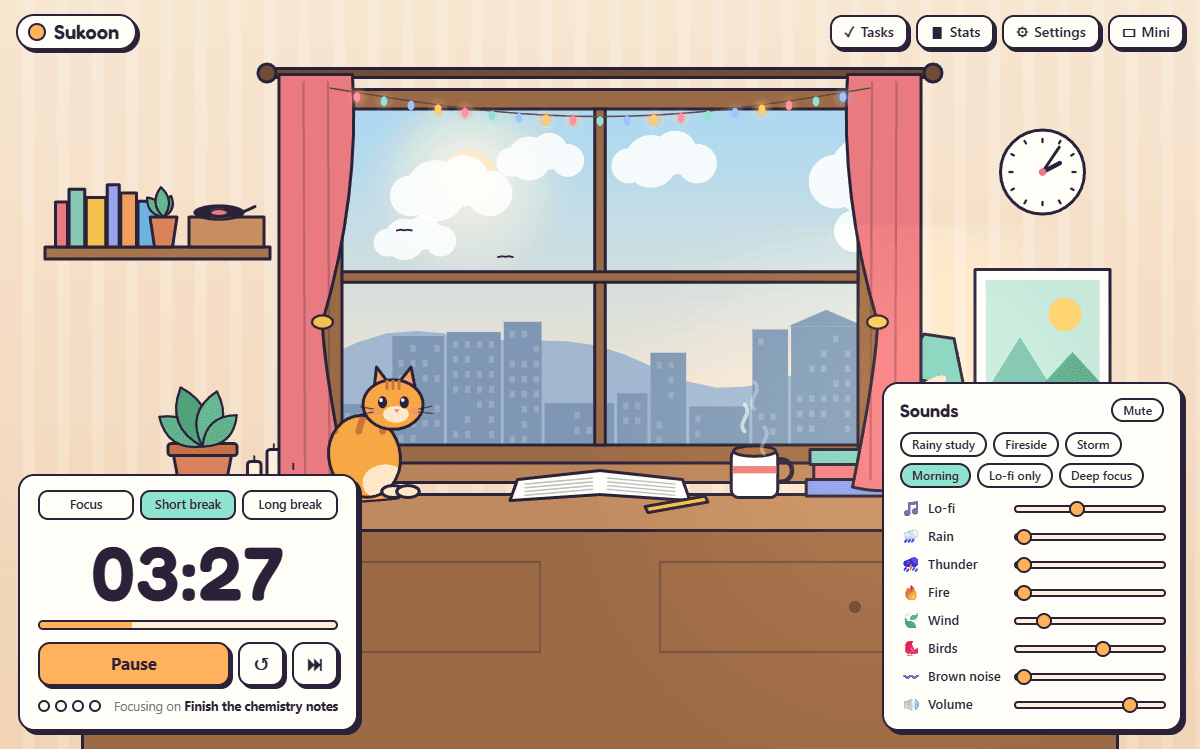
Twenty-five minutes of focus, five of rest, and a longer break after every fourth round — or set your own lengths. While you focus, the cat stays curled up asleep; when the break comes it wakes and sits up with you. A soft chime and a Windows notification tell you when each session ends, and the time left shows in the window title and next to the clock.
- Focus, short break and long break, all adjustable
- Chime and a Windows notification when a session ends
- Start the next session by itself, if you like
- Keeps the PC awake during focus; the screen can still sleep
The sounds
Endless lo-fi, made on your PC.
Sukoon composes its music as it plays: mellow jazz chords on an electric piano, a soft bass, a lazy swung drum beat and a little vinyl crackle, moving to a new progression every few bars, so it never loops. Mix it with rain, thunder, a crackling fire, wind, birdsong or brown noise, or start from a preset: Rainy study, Fireside, Storm, Morning, Lo-fi only and Deep focus.
- Seven sounds to mix, each with its own slider
- Lo-fi that never repeats, made live, no internet needed
- Six presets, from Fireside to Deep focus
- No audio files at all: every sound is generated
Progress
Tasks, minutes and streaks.
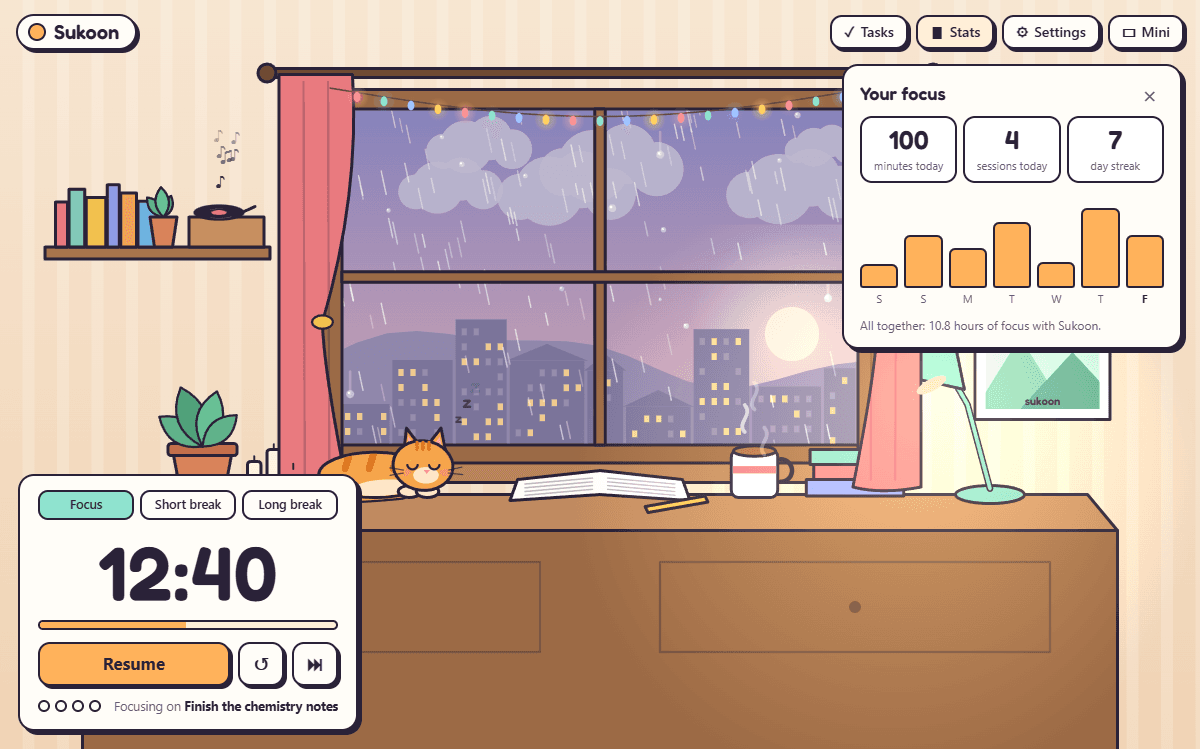
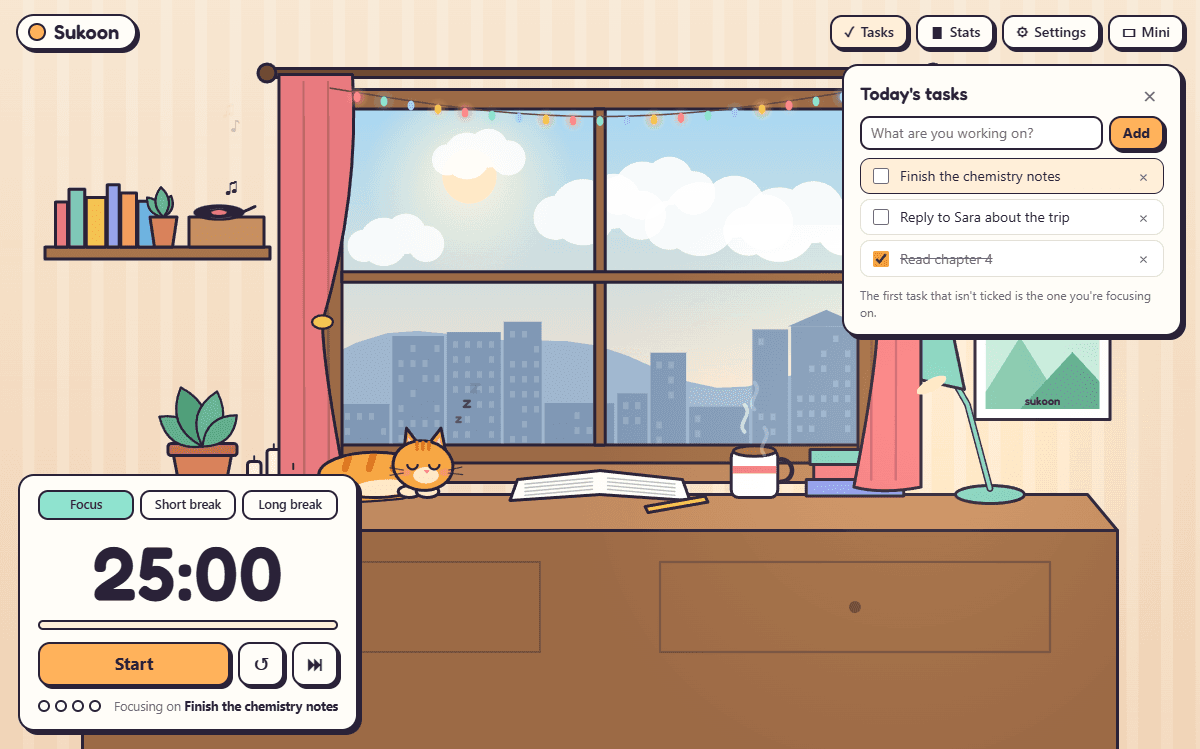
Write down what you are working on today and tick it off when it is done; the first task still open is the one the timer says you are focusing on. Every finished focus session adds to today's minutes, your sessions count and your day streak, with a chart of the last seven days.
- Today's tasks, right next to the timer
- Minutes and sessions today, and your day streak
- A seven-day chart of your focus
- All kept on your own PC
Mini timer
A small timer that stays on top.
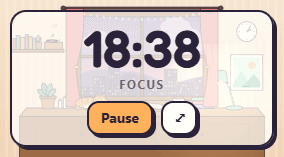
Press Mini and Sukoon shrinks to a little timer in the corner of the screen that stays above your other windows, with the room still showing through. Close the window and Sukoon keeps running in the tray, sounds and all, until you quit it.
- Always-on-top corner timer
- Space starts and pauses, M switches to mini
- Closing keeps it in the tray
- Right-click the tray icon to start, pause or quit
7
Sounds to mix
lo-fi to brown noise
0
Audio files
every note made live
5
Skies
they follow your clock
Ready to try Sukoon?
Free. No ads, no account. Updates itself.
A look inside Sukoon.
Rainy study
Break time
Fireside at night
Your focus
Today's tasks
Mini timer
Everything you need.
The rest of what Sukoon does.
Pomodoro timer
Focus and breaks in rounds, with a chime and a Windows notification.
Endless lo-fi
Music composed live on your PC, so it never loops.
Rain, fire and more
Mix rain, thunder, fire, wind, birds and brown noise.
Tasks and streaks
Today's tasks, focus minutes, sessions and your day streak.
Mini timer
A small always-on-top timer in the corner of the screen.
Always the latest
New versions install themselves.
Common questions.
Everything you need to know about Sukoon.
Is Sukoon free?
Yes. No advertising, no account, no in-app purchases and no analytics. It goes online only to check this site for a new version.
Does the music need the internet?
No. Sukoon composes the lo-fi music and makes every other sound on your PC as it plays. There are no audio files and nothing is streamed, so it works offline and never loops.
Does it keep running when I close the window?
Yes. Closing the window keeps Sukoon in the tray, next to the clock, with the timer and the sounds still going. Click the icon to bring it back, or right-click it to start, pause or quit.
Will it stop my PC from going to sleep?
Only while a focus session is running: then it asks Windows not to sleep, so the timer and the music carry on. The screen can still turn off as usual. When the timer is paused or on a break, your normal power settings apply.
Where are my tasks and stats kept?
On your own PC, inside Sukoon's folder in your user profile. They are never sent anywhere, and uninstalling removes them.
Does it slow my PC down?
Hardly. On our test PC, with the room animating and the lo-fi and rain playing, Sukoon used about 3% of one processor core.
Windows said Sukoon needs WebView2. What is that?
Microsoft Edge WebView2 is a free part of Windows that draws Sukoon's room and plays its sound. It is already on every Windows 11 PC and nearly every Windows 10 one. If yours is missing it, Sukoon offers to open Microsoft's download page.
Windows showed a blue “Windows protected your PC” screen. Is it safe?
That is SmartScreen, which Windows shows for new software from a small publisher it has not seen many downloads of yet. Click More info, then Run anyway. The installer is checked by dozens of antivirus engines on VirusTotal, and the result is shown on this page. It installs for your Windows account only and needs no admin rights.

Get Sukoon today.
Free. No ads, no account. Updates itself.
Version 1.0.0 · Windows 10 & 11
Counting visitors…
Reviews & suggestions.
Used Sukoon? Rate it, and tell us what to add or fix — we read every one.
Loading reviews…
Be the first to rate Sukoon.