Your drive is full. Here's why.
Spacewise adds up every folder on a drive in seconds and shows the result as a map: the bigger the block, the more space it takes. Click into the biggest ones, see the largest files, find copies of the same file scattered across your folders, and clear temporary files and caches. Anything you delete goes to the Recycle Bin first, so nothing is gone by accident.
Version 1.0.0 · Windows 10 & 11
— downloads so far
See it
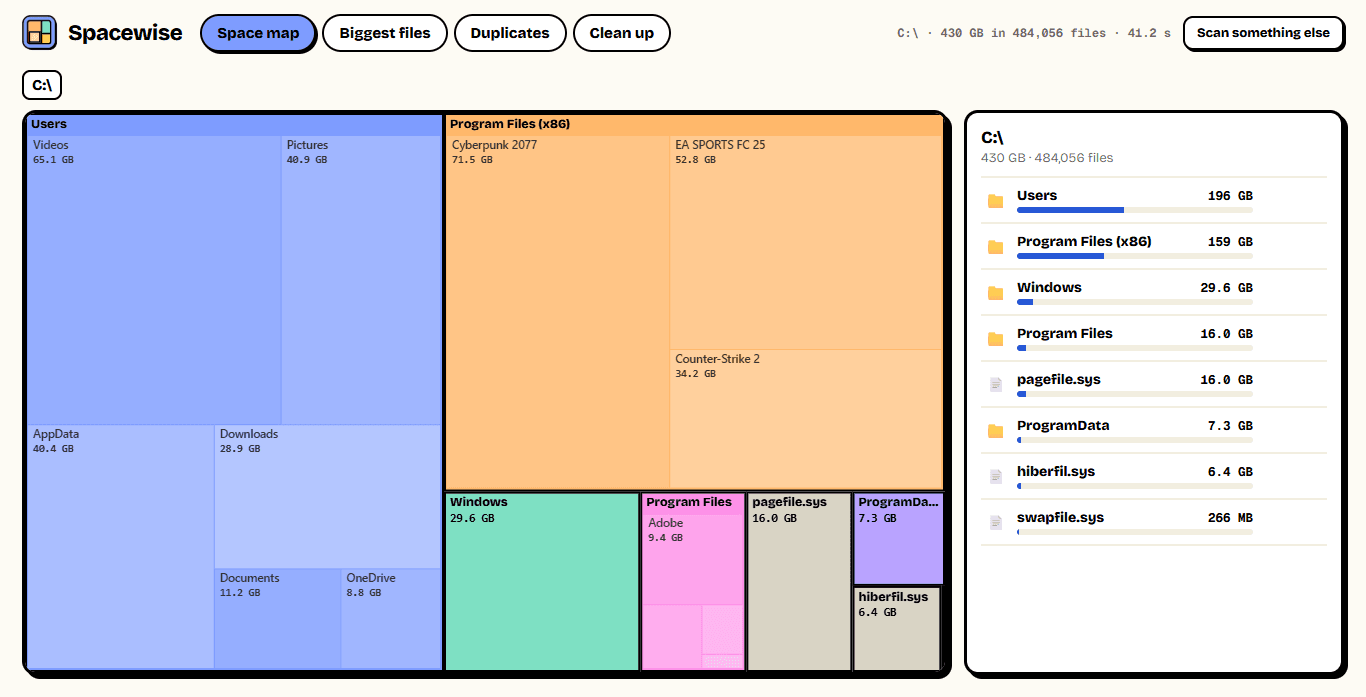
Your whole drive, as a map.
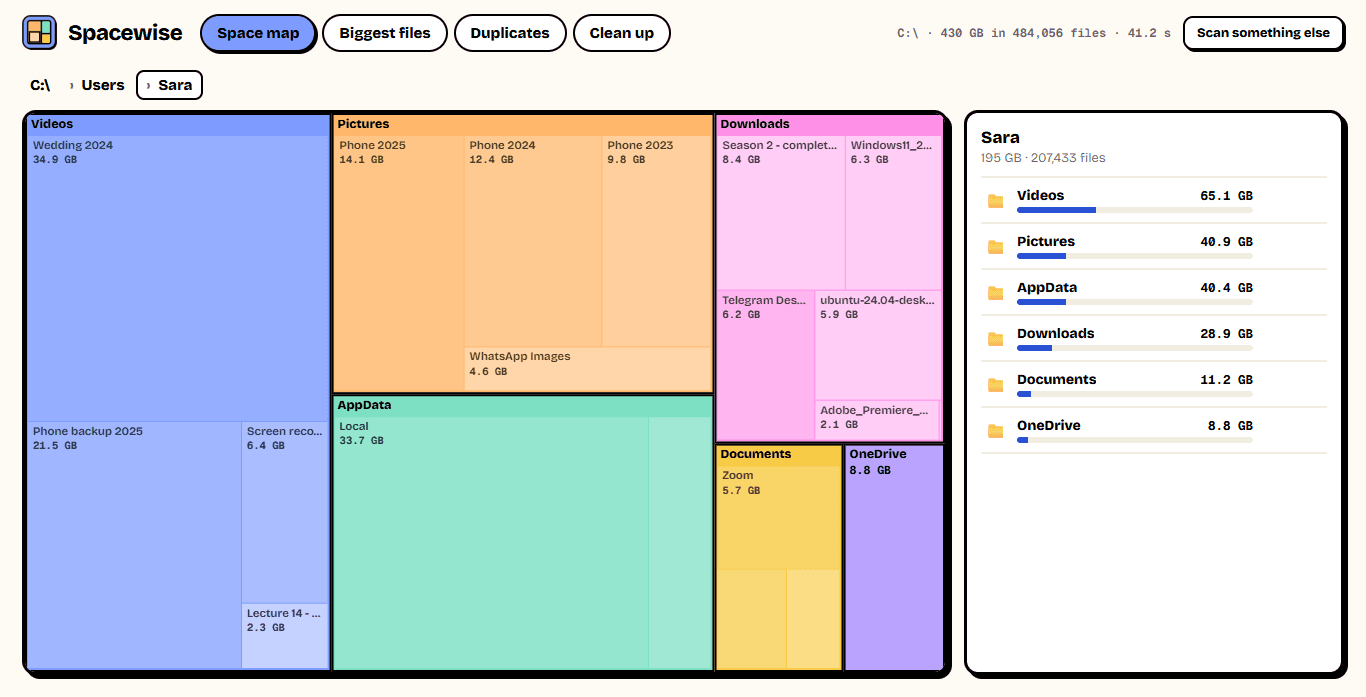
Every folder becomes a block sized by the space it takes, with its biggest contents drawn inside it. The games folder that ate 160 GB, the phone backup you forgot, the Downloads that never got tidied: they stand out at a glance. Click a block to go inside it; the list beside the map shows the same folders in order.
- Scans hundreds of thousands of files in seconds
- Click any block to go inside it
- Every folder and file sorted by size
- Open any of them in File Explorer
Duplicates
The same file, three times over.
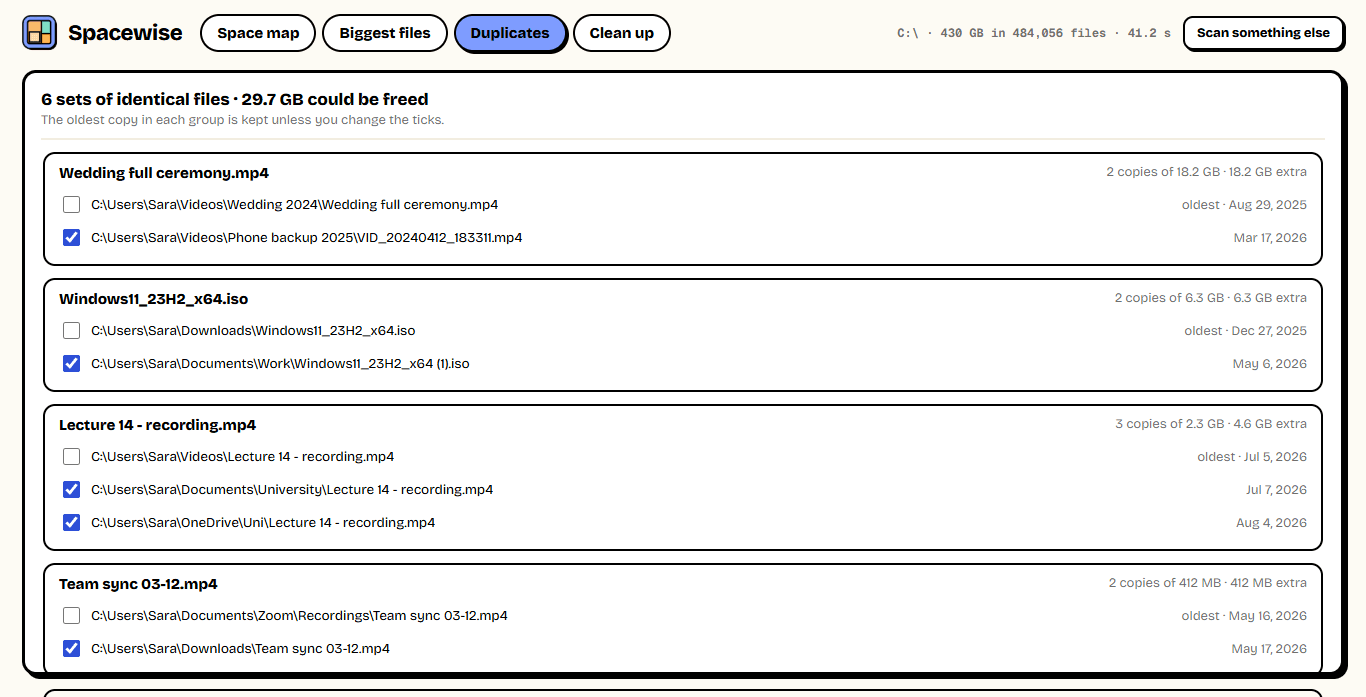
Spacewise compares the actual contents of every file over 1 MB — not just names — so it finds the same video saved in Downloads, Documents and OneDrive, or the same photo from WhatsApp and the camera roll. The oldest copy of each is kept for you; tick off the rest and get the space back.
- Matched by contents, byte for byte
- Renamed copies are found too
- The oldest copy is kept automatically
- One copy of every file is always kept
Clean up
Clear the junk, safely.
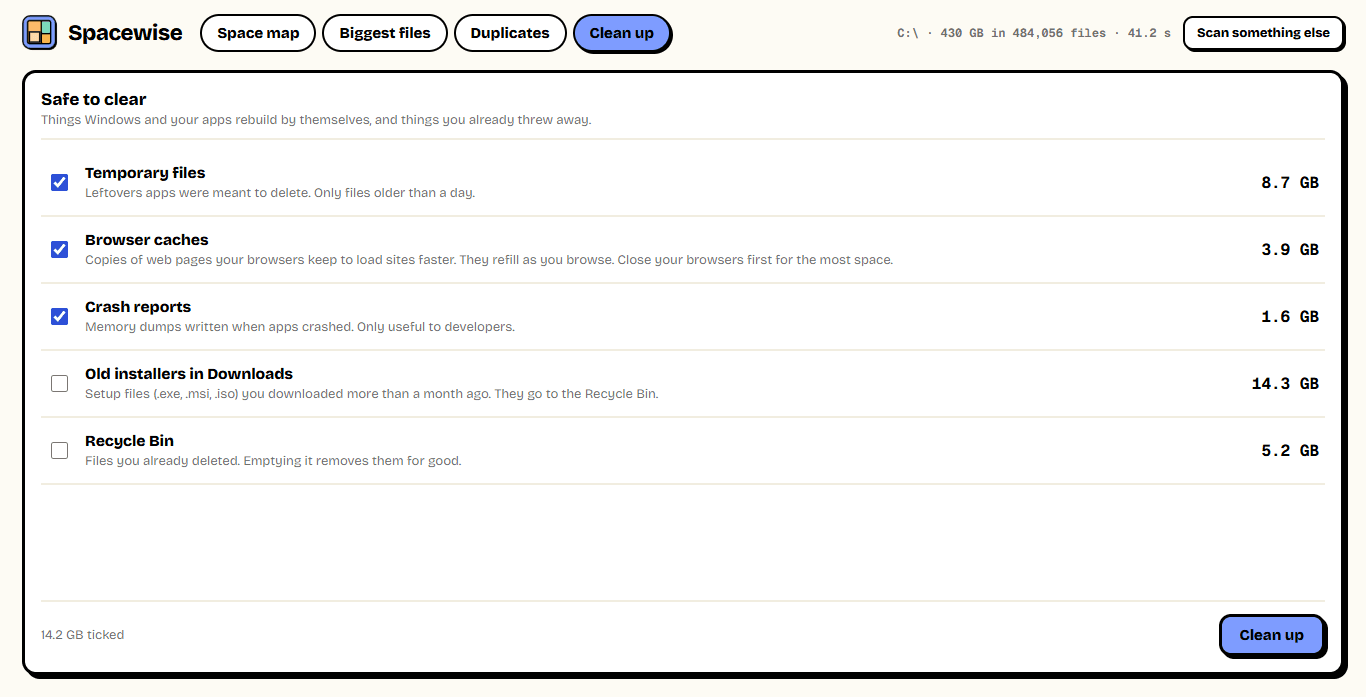
Temporary files apps forgot to delete, browser caches, crash reports, old installers in Downloads and the Recycle Bin — measured first, so you see what you get back before anything is touched. Files in use are skipped, never forced, and anything you might want again goes to the Recycle Bin rather than being deleted outright.
- Temporary files older than a day
- Chrome, Edge, Brave, Vivaldi and Firefox caches
- Old installers and ISOs in Downloads
- Files in use are always left alone
12.6 s
To scan 292,620 files
126.8 GB, on our test PC
100%
Byte-for-byte duplicates
never just by name
0
Admin rights needed
installs just for you
Ready to try Spacewise?
Free. No ads, no account, no admin rights. Updates itself.
A look inside Spacewise.
Space map
Click into folders
Biggest files
Duplicates
Clean up
Everything you need.
The rest of what Spacewise does.
Space map
Every folder as a block sized by its space.
Biggest files
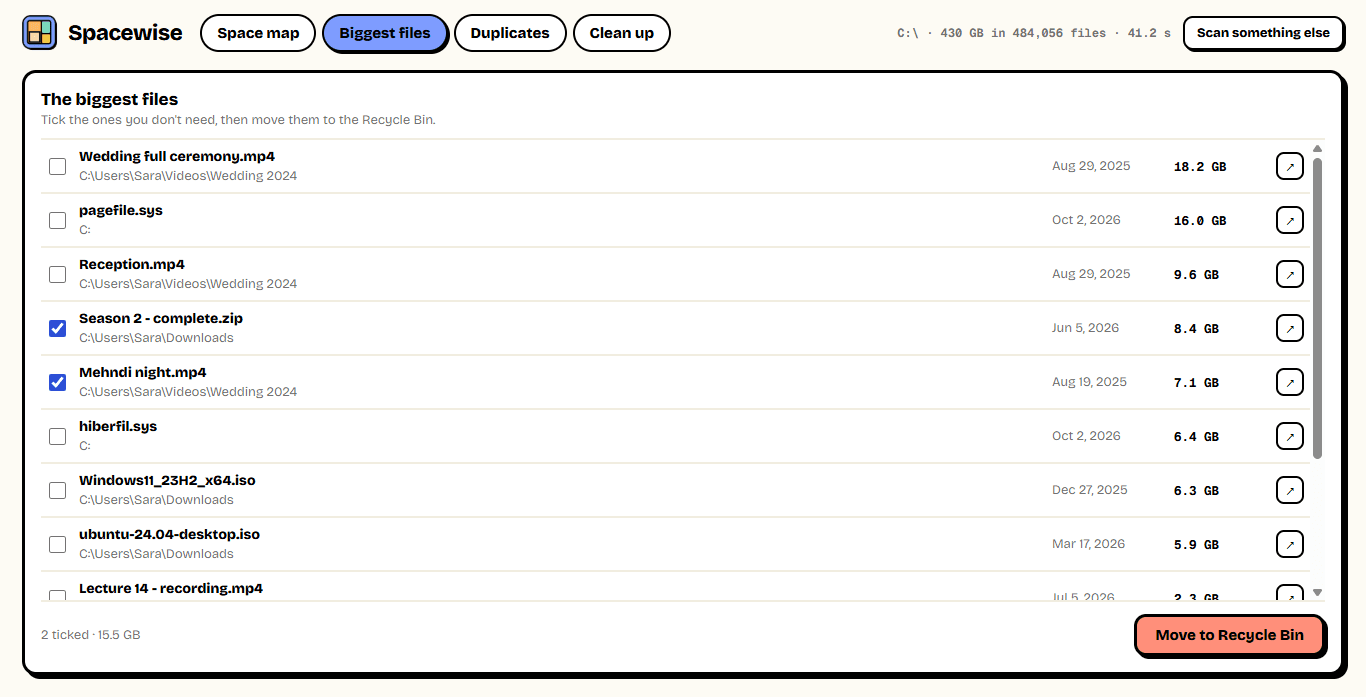
The largest files on the drive, in one list.
Duplicates
Identical files found by their contents.
Safe cleanup
Temp files, caches, crash dumps, old installers.
Recycle Bin first
Change your mind? Put it back.
Always the latest
New versions install themselves.
Common questions.
Everything you need to know about Spacewise.
Is Spacewise free?
Yes. No advertising, no account, no "pro" version and nothing to buy. It goes online only to check this site for a new version.
Will it delete something important?
Only what you choose, and only after showing you exactly what and how much. Files and folders you delete from the map, the biggest-files list or the duplicates go to the Recycle Bin, so you can put them back. The cleanup only touches temporary files, caches and crash reports that apps rebuild by themselves; old installers go to the Recycle Bin too, and the Recycle Bin is only emptied if you tick it.
Why does it show less than Windows says is used?
Spacewise adds up the files you can see. Windows also counts things your account isn't allowed to look into (other users' folders, parts of the Windows folder, System Volume Information) and space reserved for System Restore. The few folders it is not allowed to read are skipped.
How does it find duplicates?
It looks at files of 1 MB and more with exactly the same size, compares their first and last 64 KB, and then reads the whole of each remaining file to be certain. Two files are only called duplicates when every byte matches — a renamed copy counts, a file that differs by one byte does not.
Does it need administrator rights?
No. It installs for your Windows account only and reads what your account can read.
Windows showed a blue “Windows protected your PC” screen. Is it safe?
That is SmartScreen, which Windows shows for new software from a small publisher it has not seen many downloads of yet. Click More info, then Run anyway. The installer is checked by dozens of antivirus engines on VirusTotal, and the result is shown on this page.

Get Spacewise today.
Free. No ads, no account, no admin rights. Updates itself.
Version 1.0.0 · Windows 10 & 11
Counting visitors…
Reviews & suggestions.
Used Spacewise? Rate it, and tell us what to add or fix — we read every one.
Loading reviews…
Be the first to rate Spacewise.