Draw on your screen, anywhere.
Press Ctrl + Shift + D and your whole screen becomes a page you can draw on — over slides, code, a browser, a video call, anything. Circle the bit that matters, underline it with a highlighter, point with an arrow, write a note, or switch on the laser pointer and the spotlight. Whiteboard and zoom are one shortcut away, and Ctrl + S saves the screen with your drawing on it.
Version 1.0.0 · Windows 10 & 11
— downloads so far
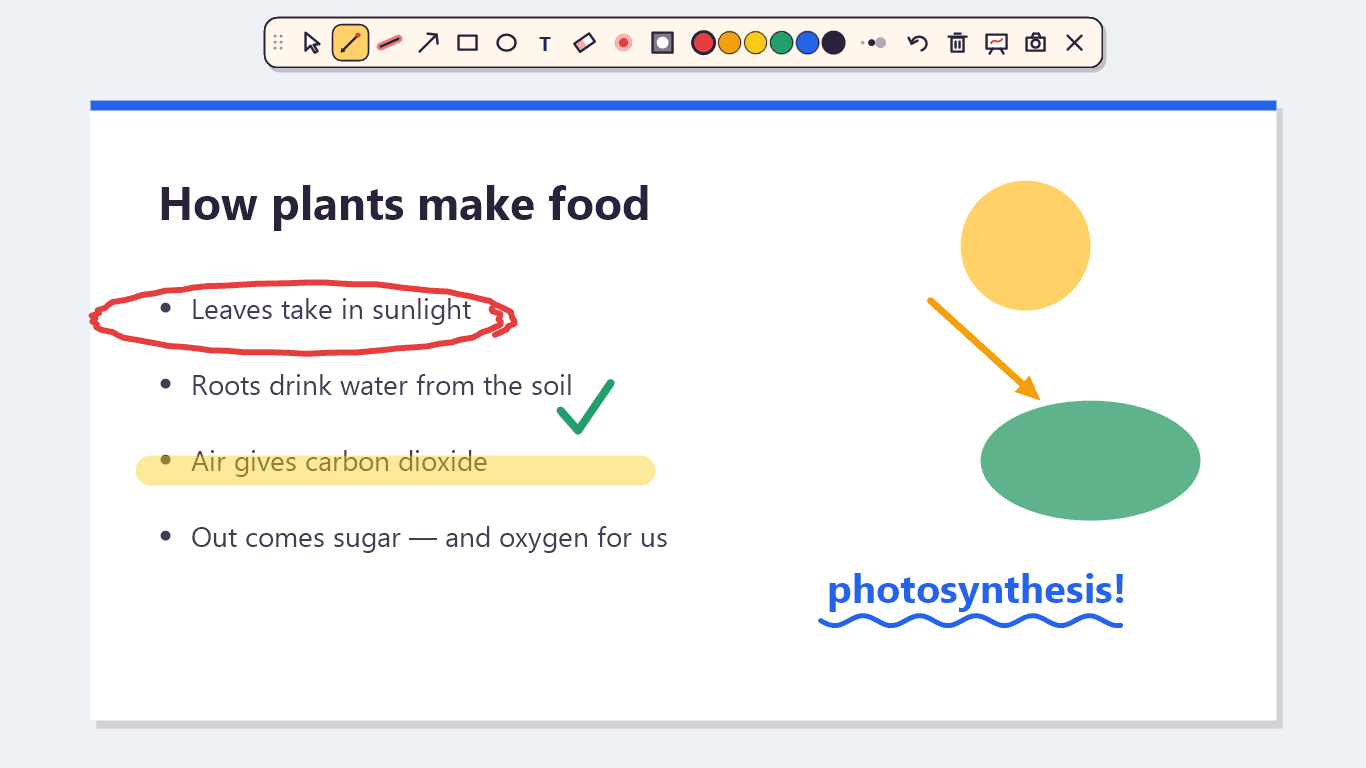
Draw over anything
Circle it, underline it, point at it.
One shortcut lays a see-through page over every monitor. Draw with a pen, mark lines with a highlighter that never goes muddy where it overlaps, add arrows, boxes, circles and typed notes, and rub out anything with the eraser. Hold Shift for straight lines, perfect squares and circles. Six colours and three sizes, all on a small toolbar you can drag anywhere.
- Pen, highlighter, arrow, rectangle, circle, text and eraser
- Shift keeps lines straight and shapes even
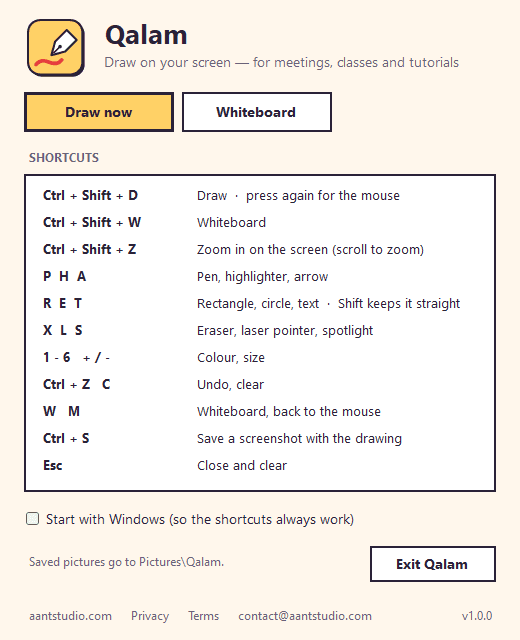
- Undo with Ctrl + Z, clear with C
- Every tool has a one-letter shortcut
Keep working
Your drawing stays. Your mouse comes back.
Press M, right-click, or press the shortcut again and the drawing stays on screen while your mouse goes back to the apps underneath: scroll the page, switch slides, type in your editor, then press the shortcut to carry on drawing. Esc clears everything and gets out of the way.
- Draw, then use your apps with the drawing still showing
- One shortcut switches back and forth
- Esc clears it all
- Works over slides, browsers, editors and video calls
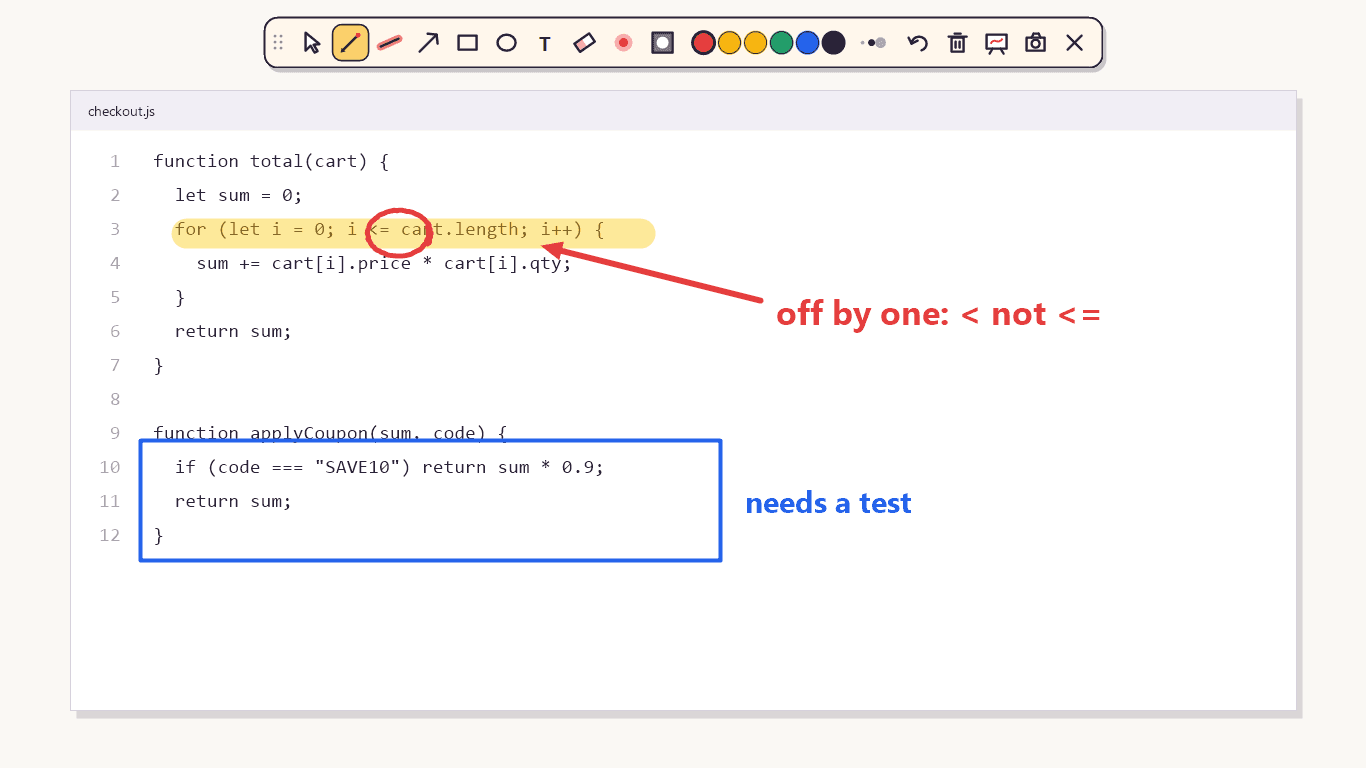
Present
A laser pointer and a spotlight.
The laser pointer is a bright red dot with a trail that fades behind it, so everyone can follow where you point. The spotlight dims everything except a circle around your mouse, so the room looks exactly where you want; scroll to make it bigger or smaller.
- Laser pointer with a fading trail
- Spotlight that follows the mouse
- Scroll to resize the spotlight
- Made for screen sharing on Zoom, Meet and Teams

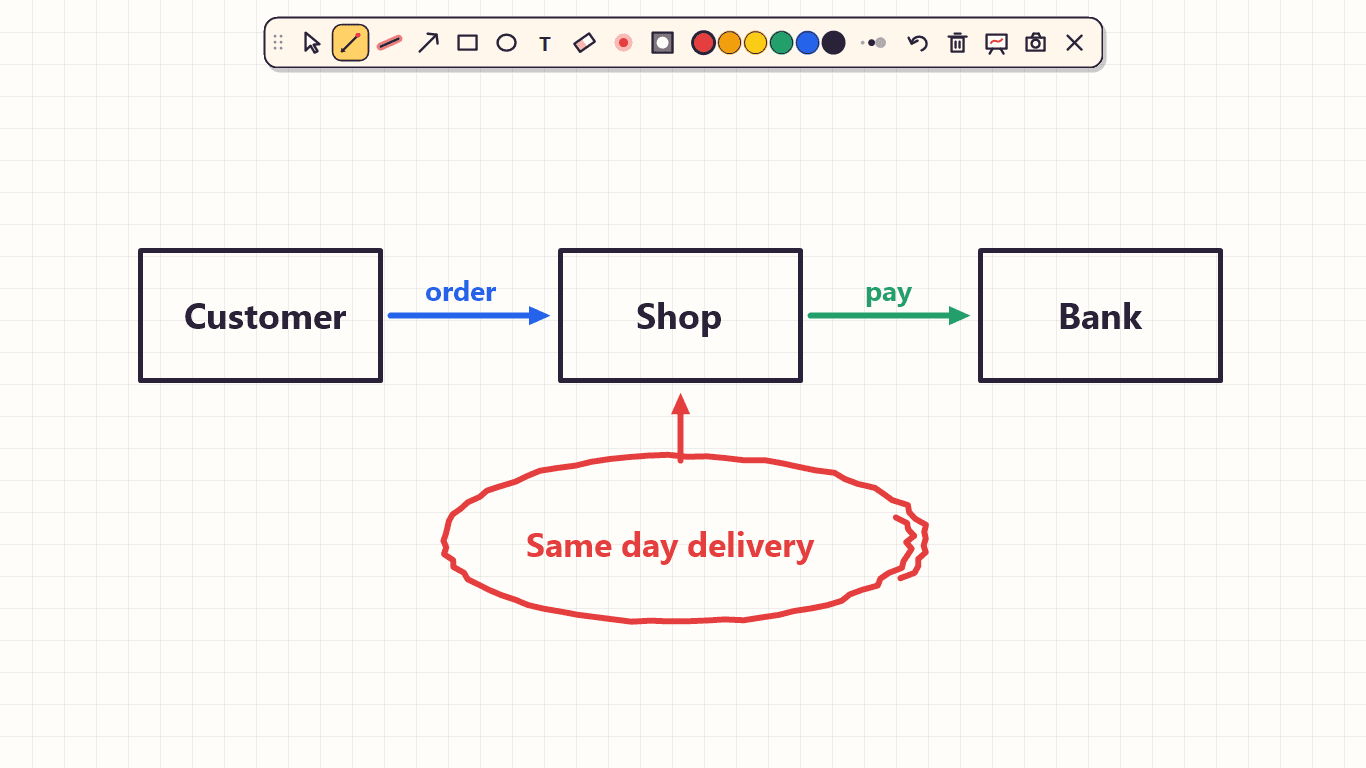
Whiteboard and zoom
A blank page, and a closer look.
Ctrl + Shift + W opens a clean whiteboard over everything, for working something out from scratch. Ctrl + Shift + Z zooms into the part of the screen under the mouse — scroll to zoom further, move to look around, draw on the zoomed picture to point at the small print. When you are done, Ctrl + S saves the screen with your drawing to your Pictures folder and copies it, ready to paste into a chat.
- Whiteboard with a soft grid
- Zoom up to 8x, and draw while zoomed
- Ctrl + S saves and copies a screenshot with the drawing
- Everything stays on your PC
9
Drawing tools
pen to spotlight
1
Shortcut to start
Ctrl + Shift + D
1.8 MB
Download
the whole app
Ready to try Qalam?
Free. No ads, no account. Updates itself.
A look inside Qalam.
Teach
Review
Spotlight

Laser pointer
Whiteboard
Shortcuts
Everything you need.
The rest of what Qalam does.
Draw over any app
Pen, highlighter, arrows, shapes and text on top of anything.
Laser and spotlight
Point with a fading red dot, or light up just one part of the screen.
Whiteboard
A blank page over everything, one shortcut away.
Zoom
Magnify the screen under the mouse and draw on it.
Save and share
Ctrl + S saves and copies the screen with your drawing.
Always the latest
New versions install themselves.
Common questions.
Everything you need to know about Qalam.
Is Qalam free?
Yes. No advertising, no account, no in-app purchases and no analytics. It goes online only to check this site for a new version.
How do I start drawing?
Press Ctrl + Shift + D anywhere, or click the pen icon next to the clock. Press it again (or M, or right-click) to use your mouse in your apps while the drawing stays on screen, and Esc to clear it and close. If another app already uses Ctrl + Shift + D, Qalam uses Ctrl + Alt + D instead and says so in its Settings.
Does it work during a video call?
Yes — share your whole screen (not a single window) in Zoom, Google Meet or Microsoft Teams and everyone sees what you draw, the laser pointer and the spotlight, because they are drawn on your screen itself.
Will the drawing get in the way of my work?
Only while you are drawing. Press the shortcut again and every click goes straight through to the app underneath, with the drawing still visible; press Esc and it is gone.
Where do saved pictures go?
Into a Qalam folder inside your Pictures folder, and onto the clipboard at the same time, so you can paste the picture straight into a chat or a document.
Does Qalam record my screen?
No. It only looks at the screen when you press Ctrl + S (to save that one picture) or start the zoom (to magnify it), and the picture stays on your PC. Nothing is sent anywhere.
Windows showed a blue “Windows protected your PC” screen. Is it safe?
That is SmartScreen, which Windows shows for new software from a small publisher it has not seen many downloads of yet. Click More info, then Run anyway. The installer is checked by dozens of antivirus engines on VirusTotal, and the result is shown on this page. It installs for your Windows account only and needs no admin rights.

Get Qalam today.
Free. No ads, no account. Updates itself.
Version 1.0.0 · Windows 10 & 11
Counting visitors…
Reviews & suggestions.
Used Qalam? Rate it, and tell us what to add or fix — we read every one.
Loading reviews…
Be the first to rate Qalam.