Every 20 minutes, look away.
EyeBreak sits quietly in the taskbar and follows the 20-20-20 rule for you. A small heads-up slides into the corner, and ten seconds later the screen turns into a calm 30-second countdown by itself — no click needed, so no break gets missed — then hands your work back on its own.
Version 1.3.0 · Windows 10 & 11
— downloads so far
The heads-up
Ten seconds to finish your sentence.
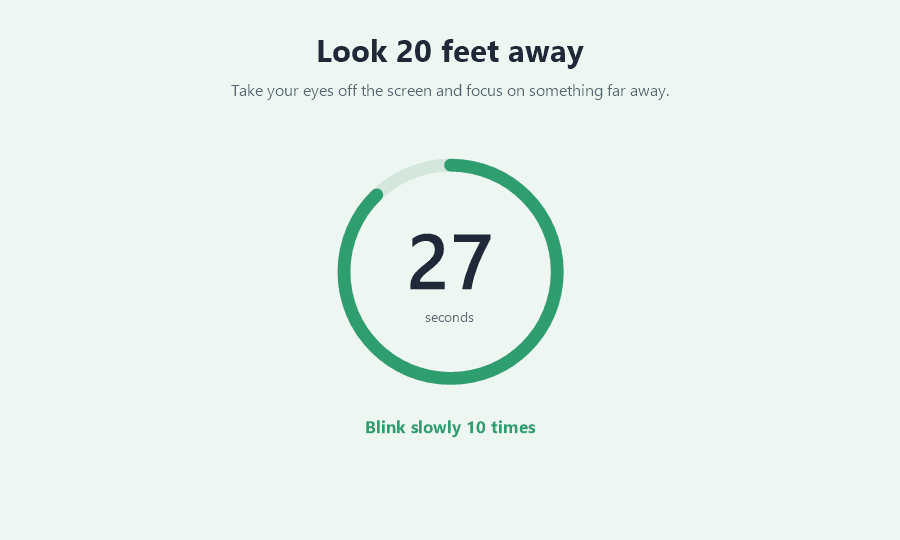
When the 20 minutes are up, a small card slides into the bottom corner with a soft chime and counts down. It does not steal your typing or grab the mouse — it just gives you a moment to finish what you are doing. Then the break starts by itself, so it cannot be missed by simply not clicking.
- Appears in the corner, above everything, without taking focus
- Counts down out loud: "Eye break in 8s", with a shrinking bar
- The full-screen break follows on its own — no click needed
- Click the card if you are ready sooner
The break
Thirty seconds of looking somewhere else.
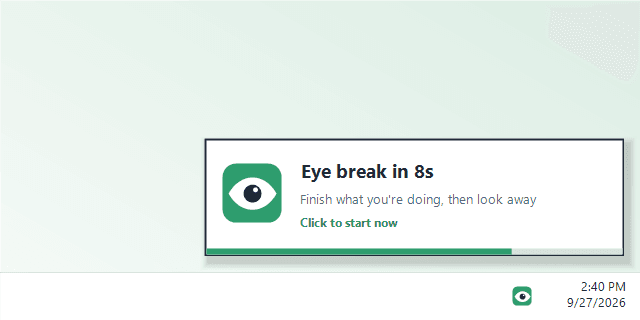
When the heads-up runs out, the whole screen turns into a quiet countdown, so there is nothing to glance back at. A ring empties as the seconds pass, a short tip changes every ten seconds, and a chime tells you when it is over — useful, because you are looking out of the window when it happens.
- Covers the screen so the break is a real break
- Tips as it runs: blink slowly, look far, breathe
- A finishing chime, then it closes and your work is back
- Press Esc if you really have to skip one
Settings
Your eyes, your timings.
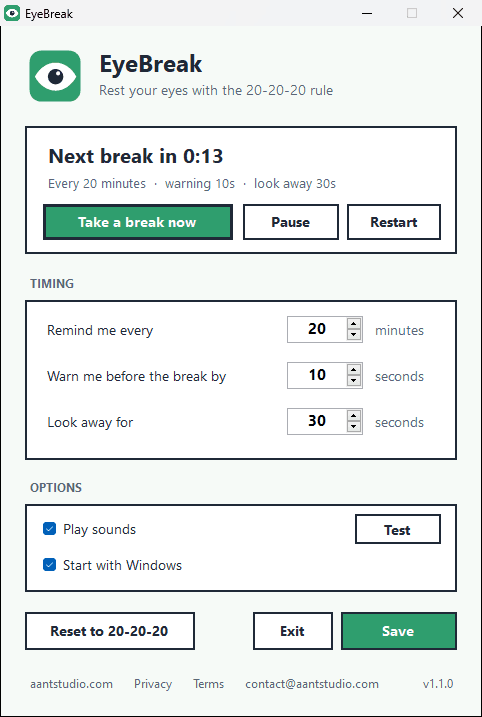
The defaults follow the 20-20-20 rule, and every number can be changed. Remind every 45 minutes instead, take a longer warning, or rest for a full minute. One button puts it all back to 20-20-20.
- Remind every 1 to 240 minutes
- Get 3 to 60 seconds of warning before the break
- Look away for 5 seconds to 10 minutes
- Pause, restart the timer, or take a break right now
Install
Set it once, then forget about it.
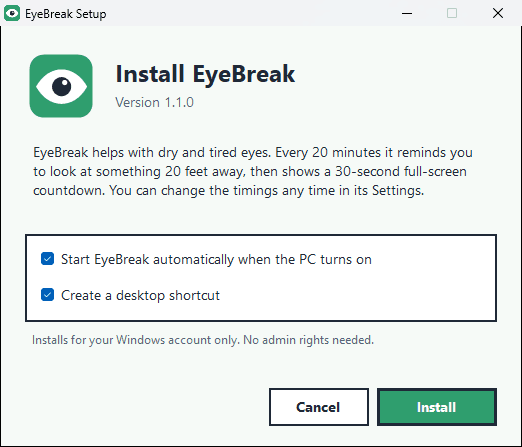
The installer takes a few seconds and needs no admin rights. EyeBreak then starts by itself whenever you switch the PC on, lives in the tray by the clock, and never asks for your attention except when it is time to rest.
- Starts automatically every time Windows starts
- Start menu and desktop shortcuts
- Locking the PC counts as a break and restarts the timer
- Uninstalls cleanly from Settings → Apps
20·20·20
The rule it follows
every 20 min, 20 feet, 20+ seconds
1.8 MB
Installer size
smaller than a single photo
0
Accounts or ads
nothing to sign up for
Ready to try EyeBreak?
Free. No ads, no account. Updates itself.
A look inside EyeBreak.
The 30-second break
The heads-up
Settings
Two-click install
Everything you need.
The rest of what EyeBreak does.
Starts with Windows
Switch the PC on and EyeBreak is already counting. Nothing to remember.
Gentle sounds
Soft chimes when the heads-up arrives, when the break starts and when it ends. One switch turns them off.
Adjustable timings
Change how often it reminds you, how much warning you get and how long the break lasts.
Knows you stepped away
Lock the PC and the time away counts as rest; the next reminder starts from zero.
Pause any time
In a meeting or a game? Pause from the tray icon and resume when you are done.
Always the latest
When a new version is out, EyeBreak downloads and installs it by itself and carries on. No account, no analytics.
Common questions.
Everything you need to know about EyeBreak.
What is the 20-20-20 rule?
Every 20 minutes of screen time, look at something about 20 feet (6 metres) away for at least 20 seconds. Focusing on a screen up close for a long time is tiring for the eyes, and people blink far less while they do it, which is a common reason eyes feel dry. EyeBreak's break lasts 30 seconds by default, to give you a little extra.
Will it interrupt me in the middle of something?
Not by surprise. The heads-up appears in the corner without taking keyboard focus and counts down for ten seconds, so you can finish the sentence you are typing. Then the full-screen break starts by itself. If you really cannot stop, press Esc to skip that one, or pause EyeBreak from the tray icon during a meeting or a game.
Does it start by itself when I turn the PC on?
Yes. The installer ticks that option for you, and you can switch it off any time in EyeBreak's settings. It starts quietly in the tray without opening a window.
Windows says it protected my PC. Is it safe?
That blue SmartScreen screen appears for new software from a small publisher that Windows has not seen many downloads of yet. Click More info, then Run anyway. EyeBreak needs no admin rights and installs only for your Windows account. Its only connections are to this site, to check for a new version, and to GitHub, where the installer is hosted.
Can I change the 20 minutes?
Yes. Open EyeBreak from the tray icon and set how often it reminds you, how many seconds of warning you get before the break, and how long the break lasts. Reset to 20-20-20 puts the defaults back.
How does it update?
By itself. EyeBreak checks this site for a new version when it starts and every few hours. If there is one, the reminders pause, a small window downloads the new installer and runs it quietly, and EyeBreak starts again on the new version a few seconds later — nothing to click. An older version cannot be used until it has updated, so everyone is on the latest.
How do I uninstall it?
Open Windows Settings, then Apps, then Installed apps, find EyeBreak and choose Uninstall. It removes the program, its shortcuts, its start-up entry and its settings.
Is it a treatment for dry eyes?
No. EyeBreak is a reminder to rest your eyes, not medical care. If your eyes stay dry, sore or blurry, see an optometrist or eye doctor.
Does it work on a Mac?
Not yet. EyeBreak is for Windows 10 and Windows 11.
Get EyeBreak today.
Free. No ads, no account. Updates itself.
Version 1.3.0 · Windows 10 & 11
Counting visitors…
Reviews & suggestions.
Used EyeBreak? Rate it, and tell us what to add or fix — we read every one.
Loading reviews…
Be the first to rate EyeBreak.